
1. Collect the minimum information
Ask for a name, a contact method, a preferred date and a short administrative description. A request such as “I would like to arrange a first appointment” gives reception enough context to follow up. Avoid turning a public appointment form into a medical questionnaire.
If you use VolaCRM’s appointment-request widget, submissions enter the workspace as requests awaiting staff review. Test the form with fictional data and check that the request arrives in the intended clinic workspace. A requested date is a preference; it does not reserve capacity automatically.
2. Review availability before confirming
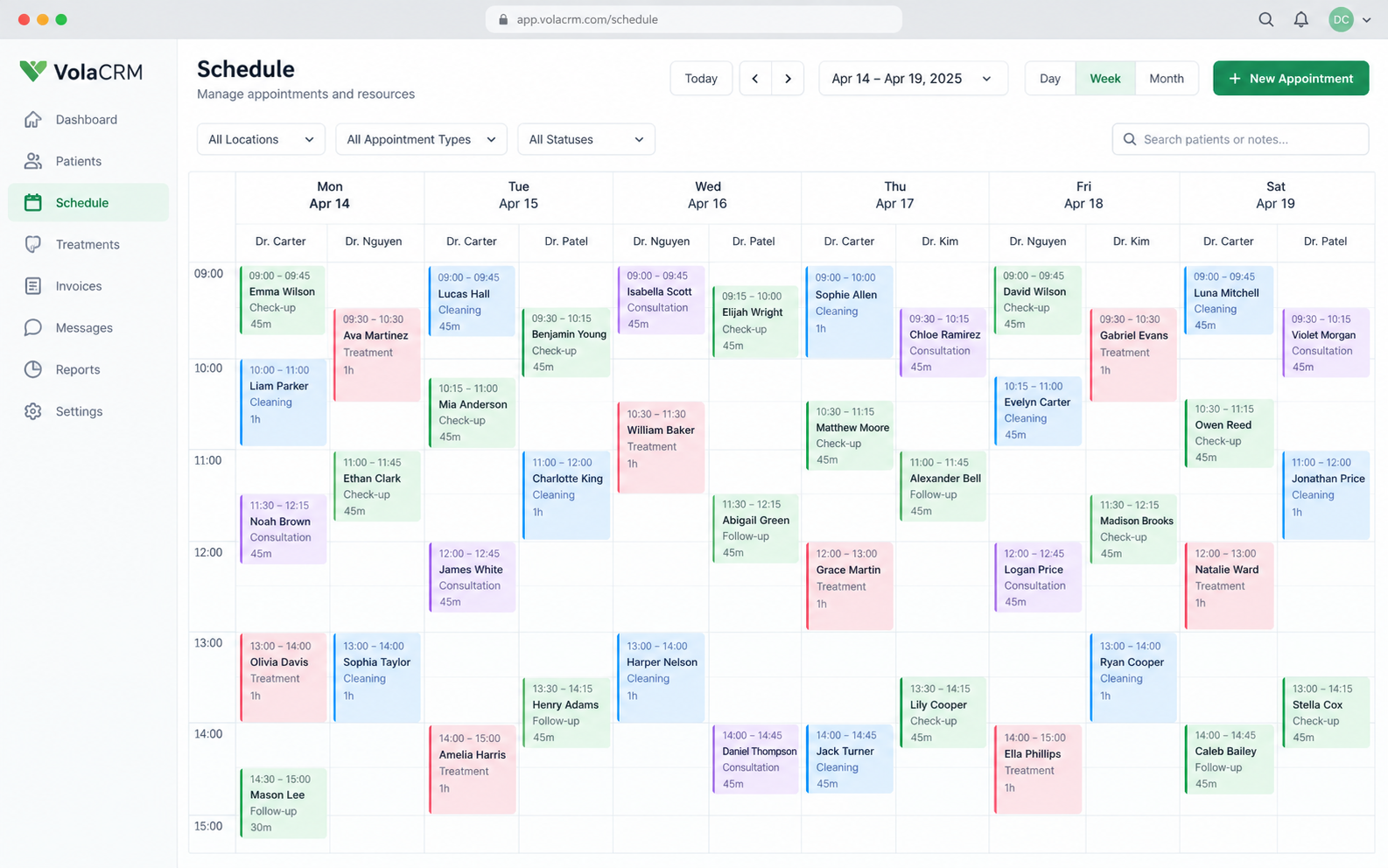
Check the weekly calendar, the responsible doctor, the treatment room and the appointment duration. A free start time is not enough if the room or doctor is already occupied during part of the appointment.
For example, a 30-minute request at 10:00 needs the relevant doctor and room until 10:30. If that slot is unsuitable, reception should contact the patient with an alternative and record the agreed date before confirming.
3. Give the request an owner
Choose the staff member who will call or reply, and keep a short administrative note describing the next action. Ownership matters most when requests arrive through several channels or when a colleague covers reception.
Phone requests can be entered by staff so the appointment calendar remains the shared working view. Before adding another patient contact, check whether the person already exists; this helps keep later appointments connected to the right contact.
4. Record the agreed appointment
Once the patient and clinic agree, review the patient, doctor, room, date, start time and duration together. Update the request’s status according to your clinic’s approval process and save the agreed appointment details.
Use consistent status names across the team. A pending request, an approved appointment and a cancelled appointment represent different decisions. Staff should be able to understand the current state without reading every note.
5. Keep changes and follow-up clear
When an appointment is rescheduled, update its agreed time and record a brief explanation. At the start of the day, review outstanding requests and appointments that need staff action.
Saving a record and delivering a patient notification are different tasks. Confirm which notification channels are configured before relying on email, SMS or WhatsApp delivery. VolaCRM’s standard clinic workflow focuses on administrative requests and scheduling; clinical records require a separately reviewed setup.
Planning example with fictional data
Worked example: a first appointment request
| Step | Example | Staff action |
|---|---|---|
| Request | A fictional patient prefers Tuesday morning | Keep pending until reviewed |
| Availability | Doctor A · Room 1 · 30 minutes | Check the full time interval |
| Agreement | Tuesday, 10:00–10:30 | Record the time agreed with the patient |
| Follow-up | Patient asks to move to Wednesday | Update the schedule and administrative note |
Review the calendar before confirming
Common questions
Does a website request confirm an appointment?
Treat it as a request until authorized staff have reviewed availability and agreed the booking.
Is this a clinical patient-record system?
This guide covers reception and appointment operations. VolaCRM’s standard clinic workspace does not replace an EHR, diagnosis or clinical-triage system.
Try the workflow
Explore the matching template and adapt the process to your team, starting with example records.