Screenshots use the English interface. Turkish instructions describe the same controls; interface text may differ by selected language. Select a screenshot to open the larger image.
1. Plan the work and the people
Create a cloud workspace with Project Planner. Add team members in Team members, then create tasks with a title, start and end dates, and a responsible project resource. Save each task before requesting feedback.
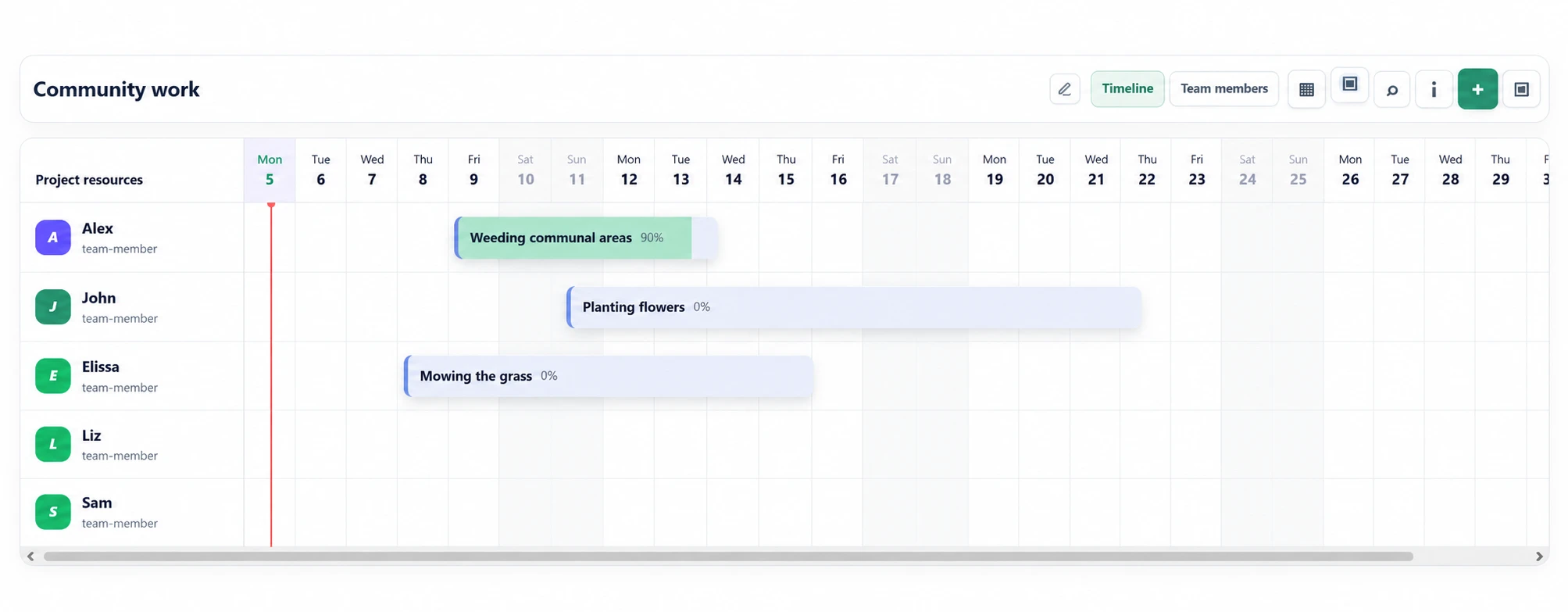
2. Open a task and request feedback
Open the saved task details and choose Request feedback. The button creates a link so a contributor can report progress or work completed for this task.
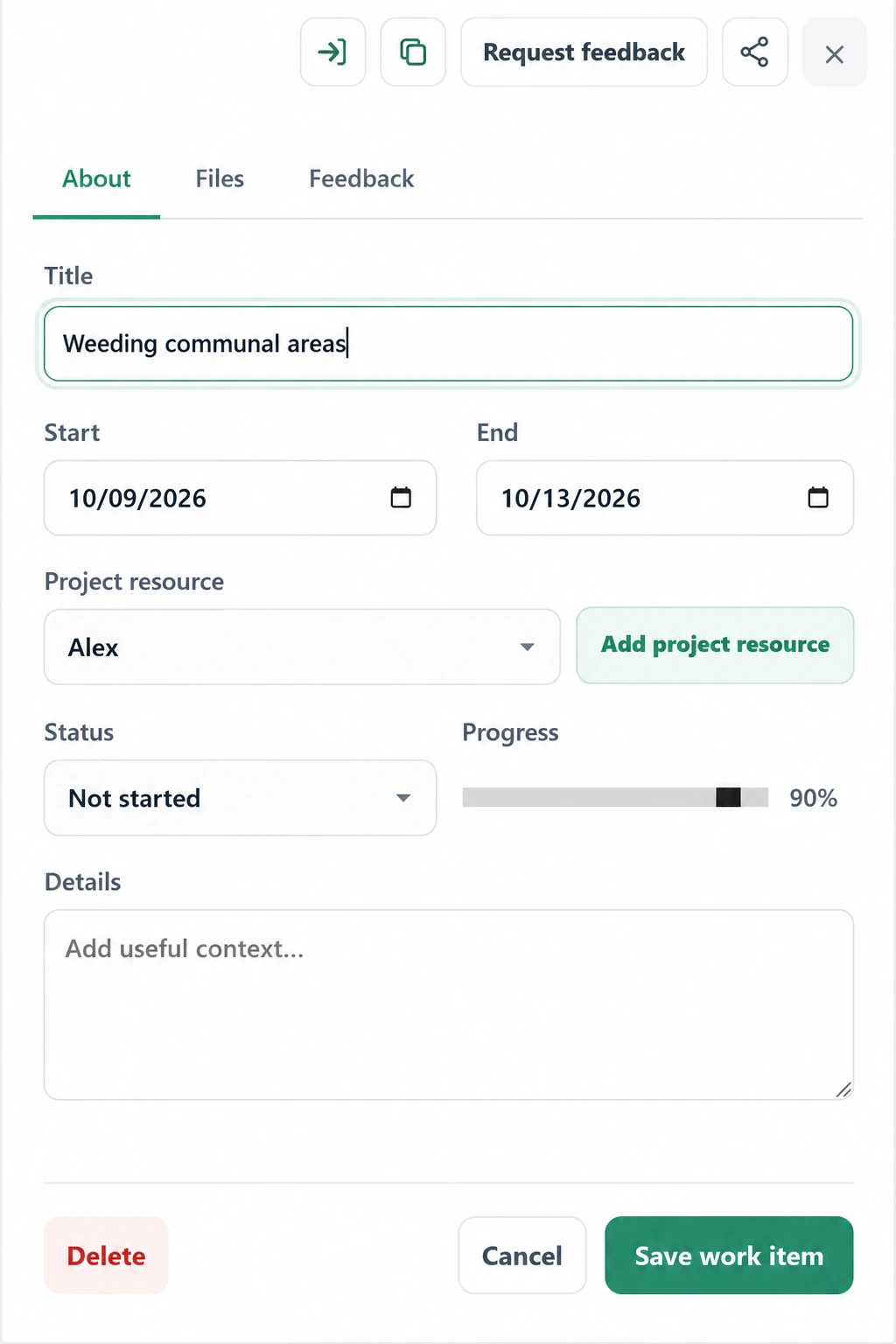
3. Select a form, then generate the link
Choose Completion percentage for an update from 0–100%, or Days worked for the number of days spent on the task. A form selection is required before Generate link becomes available. Days worked can include fractions; agree what a working day means with your team.
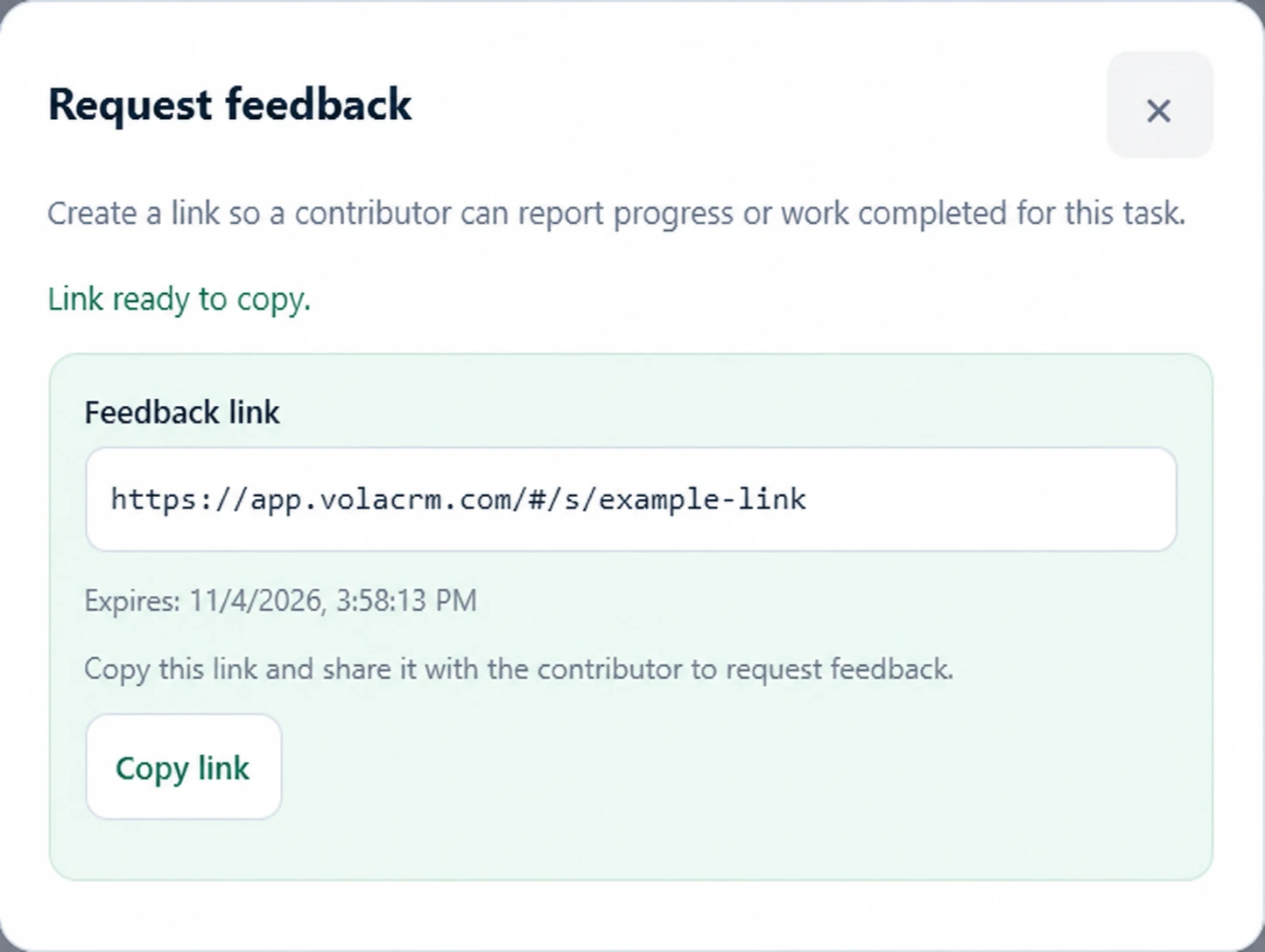
4. Copy and share the secure short link
Select Copy link and send it directly to the intended contributor using your preferred channel. Check the displayed expiry. VolaCRM does not send an email invitation from this flow. Treat the link like a private key: anyone who has it can use its task feedback access.
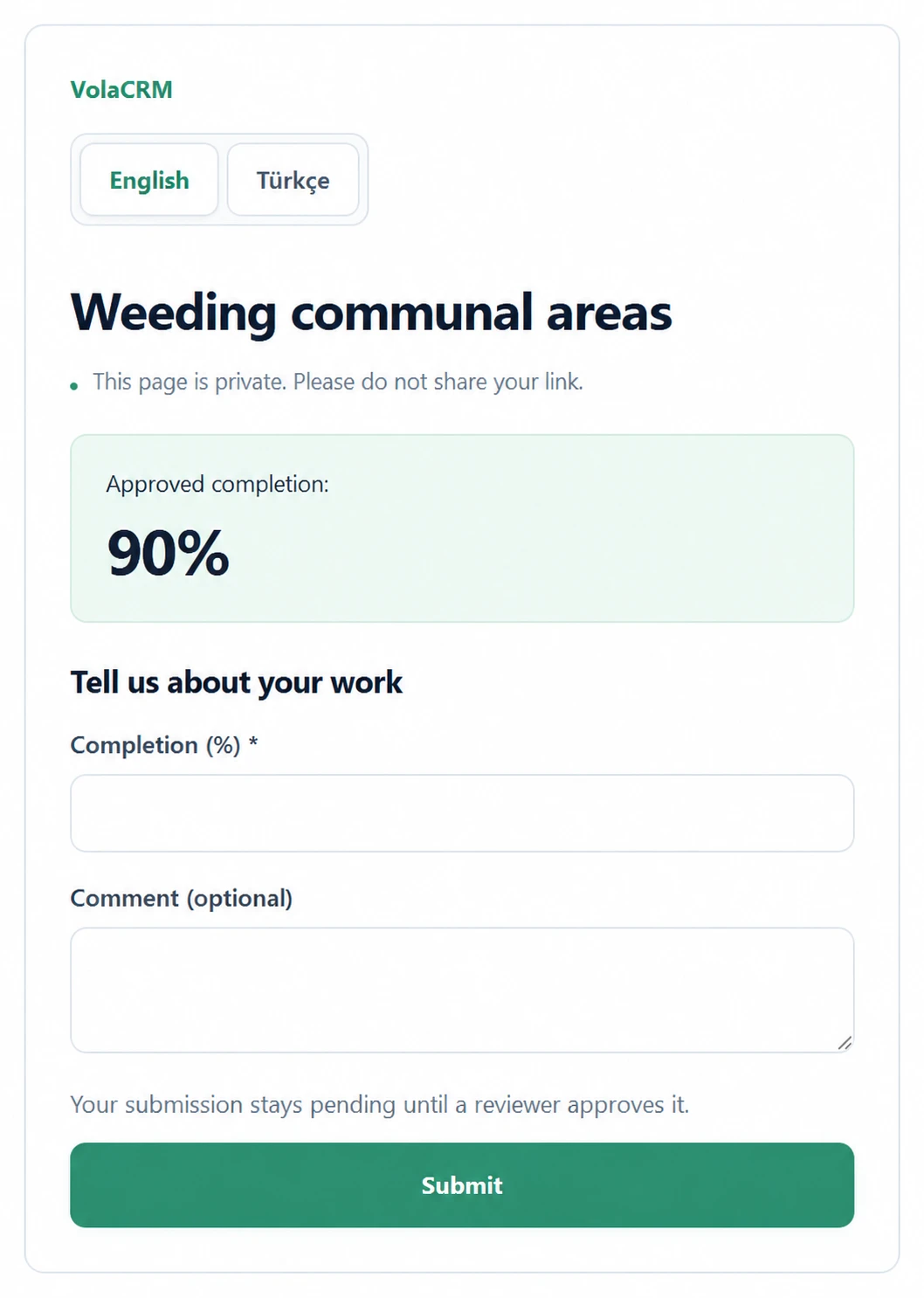
5. The contributor reports their work
The contributor opens the link without a VolaCRM account. The page shows the selected form and permitted task information. Enter the completion percentage or days worked, optionally add a comment, and select Submit.
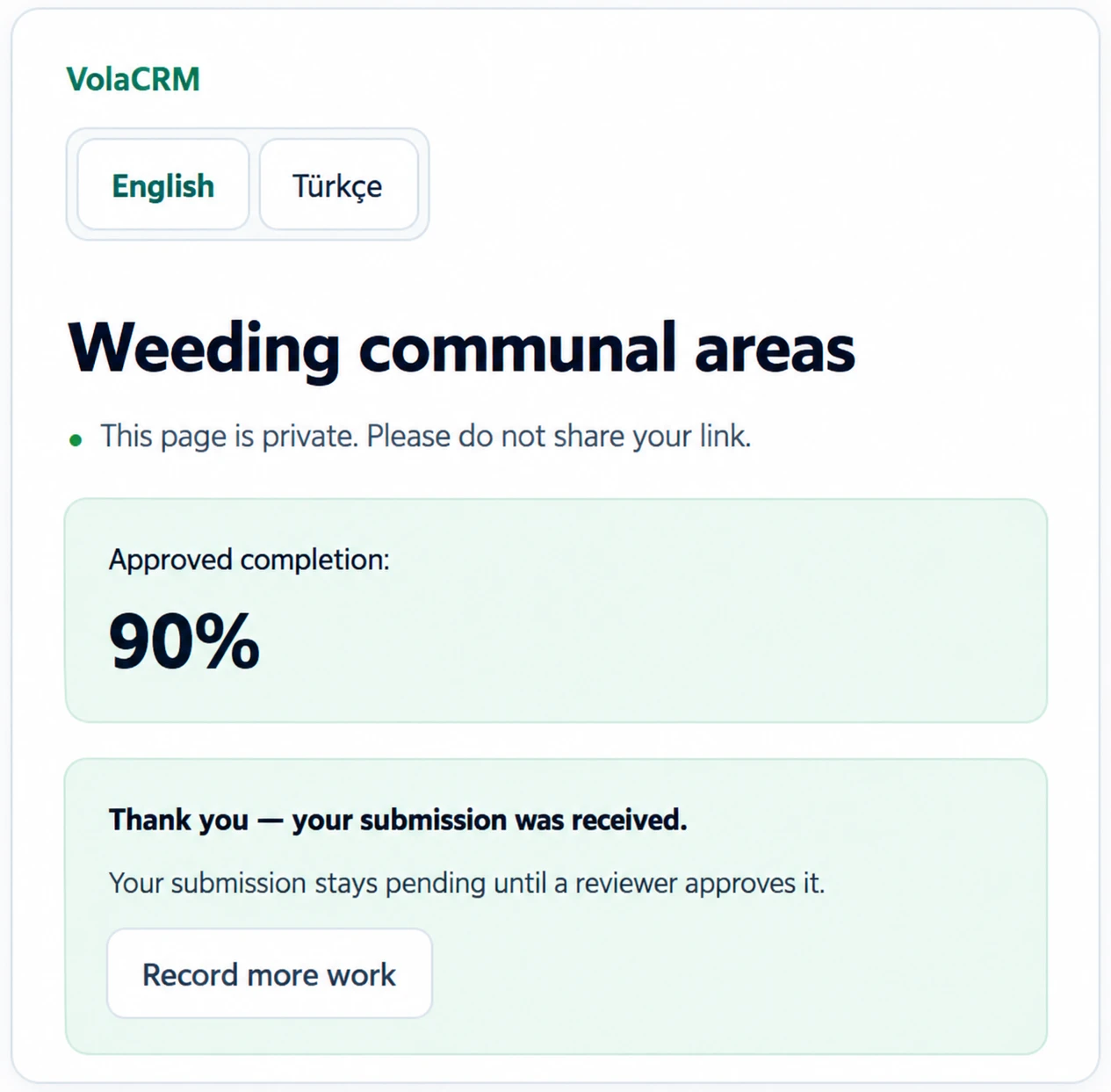
6. Check the submission receipt
A confirmation appears after submission. The report remains pending until reviewed. Record more work allows another report; it does not overwrite the earlier submission.
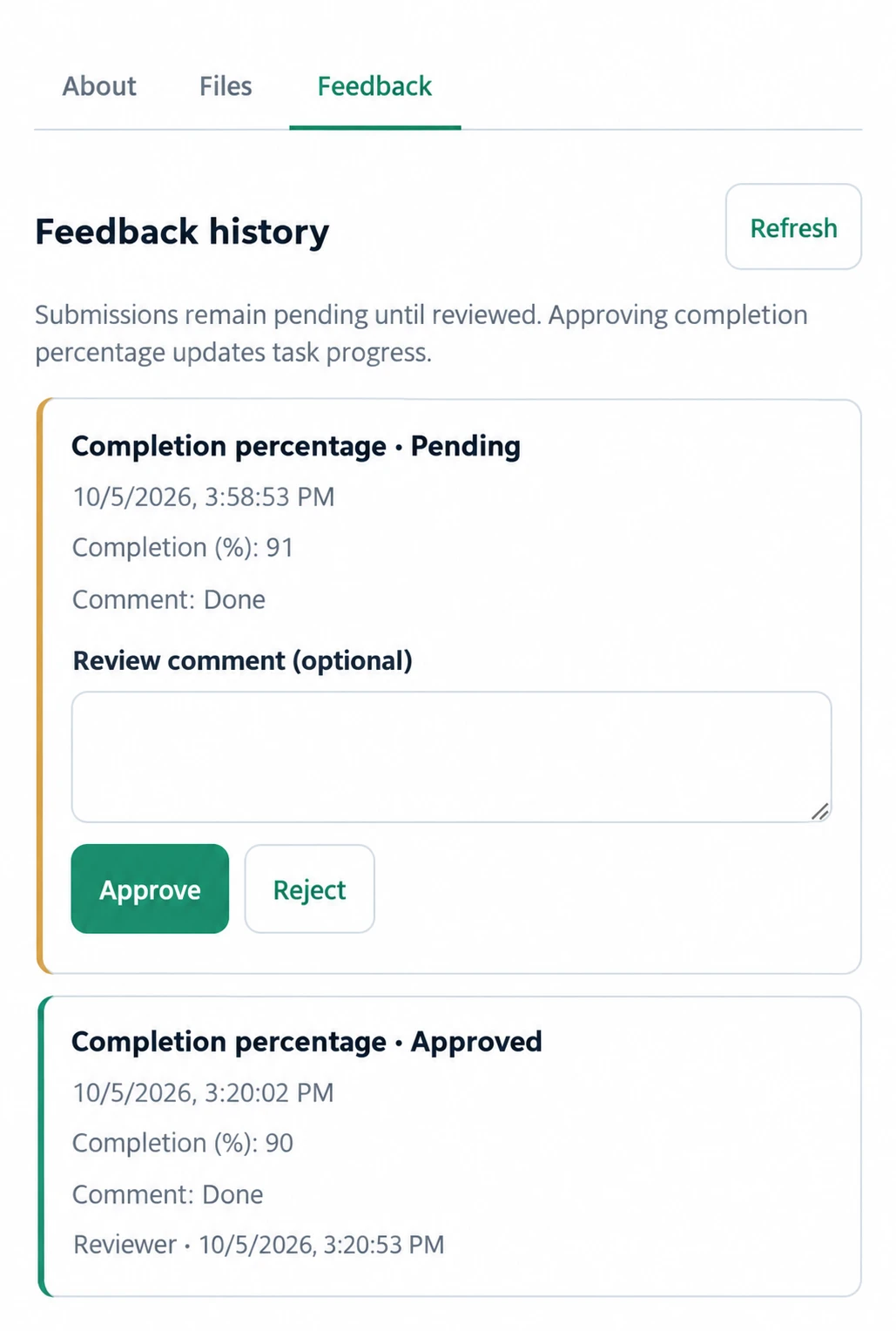
7. Review feedback beside Files
In task details, open Feedback to see submission history and pending, approved or rejected status. Authorized reviewers can add an optional review comment and choose Approve or Reject. Approved completion percentage updates official task progress; pending and rejected reports do not. Days worked records work reported rather than converting days into percentage.
One workflow, different projects
Community gardens
Create tasks for mowing, communal weeding or planting. Request each contributor’s update directly and review it privately rather than circulating a shared contribution spreadsheet.
Permaculture projects
Plan bed preparation, irrigation, composting and seasonal planting. Use percentage for a deliverable and days worked for time spent on a task.
Construction and renovation
Schedule preparation, electrical work or painting. Ask a crew member for progress, review the report, and keep approved progress on the timeline.
This guide covers the two built-in task forms. Days worked is not an hours ledger, seasonal volunteer quota or payroll calculation. If your project needs hourly contributions and seasonal targets, configure and validate a suitable feedback definition separately.
Keep task links private
Share each link only with its intended contributor. Review or revoke active links in the task’s Feedback tab; replacing a link invalidates the previous one. Expired or revoked links no longer allow feedback. The link does not grant access to the full workspace or other tasks.