Website widgets · Setup guide
Connect your website to the right VolaCRM workspace.
Use the Chat widget for live visitor conversations and the Contact Us form for inquiries. Each widget is linked to a specific workspace through its own saved website client.
Installing on Wix? Follow the Wix-specific Chat and Contact Form guide.
How the connection works
Website visitor → hosted widget → saved client and workspace IDs → matching VolaCRM workspace. A chat conversation appears in Admin Chat; a contact form submission appears as an inquiry task in the Kanban board.
The embed code is generated inside the destination workspace. Do not copy IDs from a different workspace or reuse one widget’s client ID for another. The code contains routing identifiers, never an admin login token.
Install the Chat widget
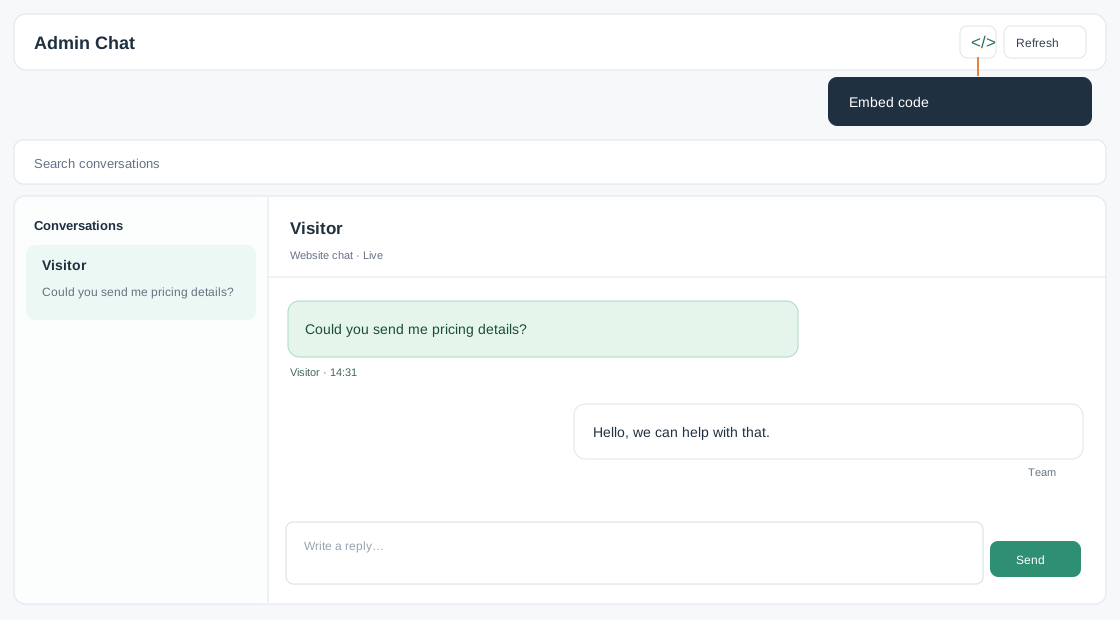
Use an Admin Chat workspace so your team can read incoming conversations and reply from the admin dashboard.
- Sign in to VolaCRM and open the Admin Chat workspace that should receive website conversations.
- In that template’s existing top toolbar, select the code icon labeled “Embed code.”
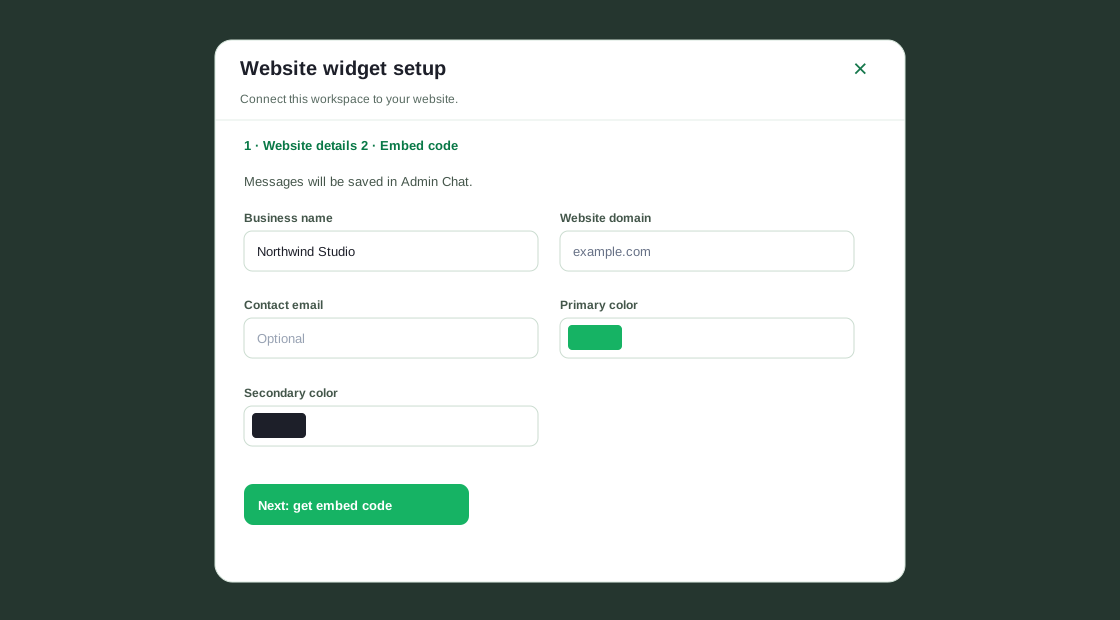
- Enter the business name. Enter the target website domain and, optionally, a contact email; choose primary and secondary colors. Select “Next: get embed code.”
- Copy the generated Chat script. Paste it once into the target website HTML, preferably just before the closing body tag, or into a custom code block that permits external scripts. Publish the website.
- Open the published page in a private window, start a test chat, then return to that same Admin Chat workspace to confirm the conversation appears. Reply there and verify the visitor receives it.
Install the Contact Us form
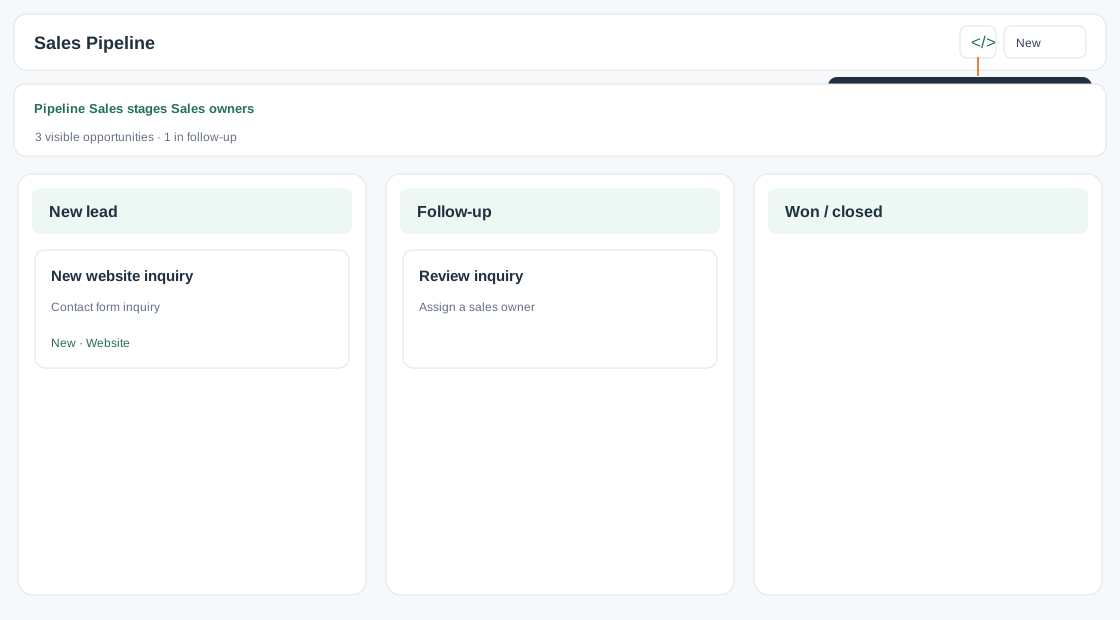
Use a Kanban workspace for inbound inquiries. The form’s submissions create tasks in the connected Kanban board.
- Sign in and open the Kanban workspace that should receive Contact Us submissions.
- Select the “Embed code” icon in the Kanban template’s existing top toolbar.
- Fill in the business details and website domain and optional email, choose widget colors, then select “Next: get embed code.”
- Copy the generated Contact Us script. Put a container where the form should appear and set the script’s data-target attribute to that container’s CSS selector, for example #contact-form. Place the script after the container. Publish the page.
- Submit a test inquiry from the live site and verify that the task appears in that same Kanban workspace. Check that your team can open and follow up on it.
Placement example
The script you copy from VolaCRM already includes the correct tenant, workspace, client, API, and widget settings. This example shows where to put it; insert your own generated script in place of the comment.
<div id="contact-form"></div>
<!-- Paste your Contact Us script here and add data-target="#contact-form". -->
After installation
- Keep each widget connected to the workspace where its code was generated.
- To change saved website information, open Embed code again in the same template. The wizard reloads saved details.
- In Settings → Embed Codes, review existing website clients and their generated code. Remove an unused client there only when its website embed is no longer needed.
- If a test chat or inquiry is missing, check that the published HTML uses the matching widget script, workspace ID, and client ID, then test again from the public page.
Ready to connect your website?
Open VolaCRMThe interface previews reflect the current templates; example conversations and inquiries are illustrative.